We are regularly offering a GCP Incident Response and Analysis training. In this training, we analyze resources in GCP cloud together with our trainees that were successfully compromised by attackers, e.g., GCE instances and Cloud Build projects. Therefore, we need tooling that quickly detects misconfiguration of resources that helped the attacker during the compromise. During the analysis of different tools and different kinds of misconfiguration we realized that GCE instance access scopes are a blind spot of many (in fact all that we tested) security audit tools. In this blog post, we want to elaborate on the problems that arise from this behavior.
First, let’s look at what Service Accounts are and how they are restricted by access scopes.
Service Accounts and Default Service Accounts
Service Accounts are IAM principals (user accounts) that can be used by resources (e.g., GCE instances) to access other resources (e.g., container registries) with the permissions that were granted to the Service Account.
When creating a GCE instance we can define the Service Account that the GCE instance should use during its lifetime (see screenshot below).
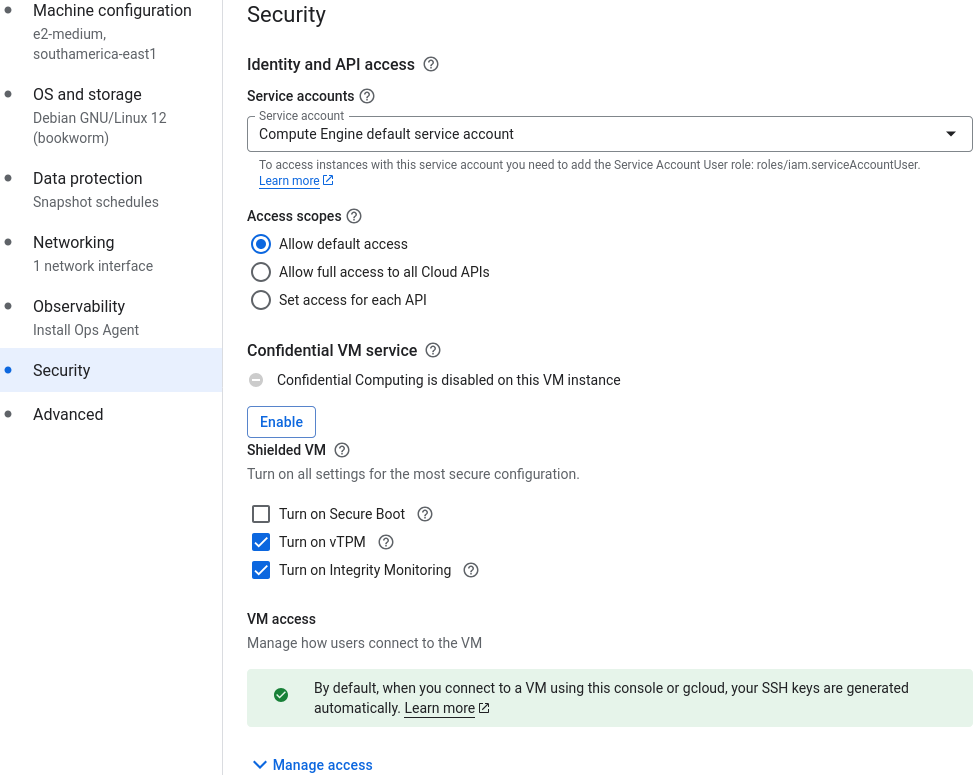
As we can see in the screenshot, the Compute Engine default service account is preselected in the web interface (but we can change it to some other Service Account or even no Service Account). This Service Account is automatically generated when creating a GCP project. If GCP organization policies do not restrict the permissions of the Compute Engine default service account, the default role of this Service Account is Editor (see screenshot below).

As the IAM overview already indicates, the Editor role grants the principal a wide range of permissions, e.g., to create, delete, or change configuration and resources in the whole project.
This seems bad: All instances run with a Default Service Account that grants excessive permissions to all kinds of resources in the project! What if an instance gets pwnd?
That’s why access scopes exist:
Access Scopes
Because misconfigured Service Accounts and the Default Service Account may have excessive permissions that would allow attackers to immediately compromise the whole GCP project after compromising just a single GCE instance, there is another safeguard, so-called access scopes. Even if the Service Account is allowed to access, e.g., container registries, it cannot access them if the access scopes do not allow it.
The screenshot above shows that by default a standard set of access scopes is used. According to the GCP documentation this is:
- Read-only access to Cloud Storage.
- Write access to write Compute Engine logs.
- Write access to publish metric data to your Google Cloud projects.
- Read-only access to Service Management features required for Google Cloud Endpoints.
- Read or write access to Service Control features required for Google Cloud Endpoints.
- Write access to Cloud Trace allows an application running on a VM to write trace data to a project.
But – as we can see in the screenshot – there are options to configure access scopes differently. This allows us to grant the GCE instance access to many resources (if the Service Account has the according permissions). The following screenshot shows what kind of scopes we can configure.
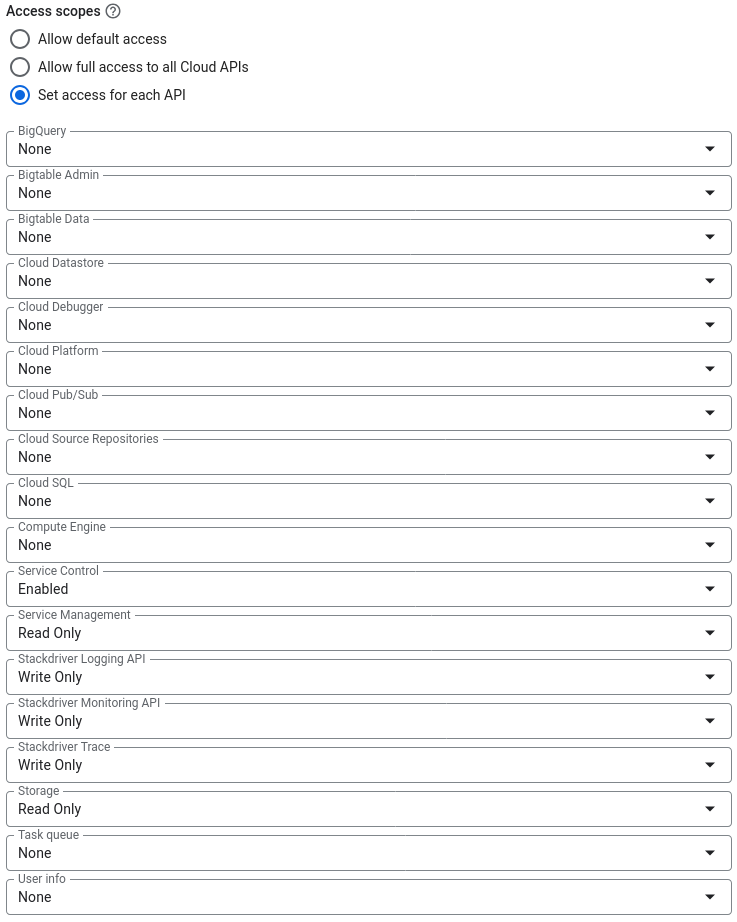
A dangerous change would be here to set the “Compute Engine” option to “Read Write”. The effect would be – since the Default Service Account has Editor permissions – that the GCE instance can change firewall policies or spawn completely unrestricted GCE instances.
Auditing Access Scopes
We see that a simple change in the configuration can have severe side effects – it would be a shame if audit tools would miss such a misconfiguration.
However, our experience is that tools, such as steampipe/powerpipe, gcp_scanner, and others do not check or report a dangerous use of insecure access scopes together with excessive permissions of Service Accounts. A security audit based just on the output of such tools is incomplete and may give a false sense of security.
If you want to manually check the access scopes of an instance that you have access to, you can use this simple command to query them:
curl "http://metadata.google.internal/computeMetadata/v1/?recursive=true" -H "Metadata-Flavor: Google" | jq ".instance.serviceAccounts"
For an instance that uses the default access scopes, you will see an output that contains these lines:
"scopes": [
"https://www.googleapis.com/auth/devstorage.read_only",
"https://www.googleapis.com/auth/logging.write",
"https://www.googleapis.com/auth/monitoring.write",
"https://www.googleapis.com/auth/service.management.readonly",
"https://www.googleapis.com/auth/servicecontrol",
"https://www.googleapis.com/auth/trace.append"
]
Another output with wider, insecure settings looks as follows. Here, we gave full access to Compute Engine and full access to Storage:
"scopes": [
"https://www.googleapis.com/auth/compute",
"https://www.googleapis.com/auth/devstorage.full_control",
"https://www.googleapis.com/auth/logging.write",
"https://www.googleapis.com/auth/monitoring.write",
"https://www.googleapis.com/auth/service.management.readonly",
"https://www.googleapis.com/auth/servicecontrol",
"https://www.googleapis.com/auth/trace.append"
]
A third, very insecure output looks like below. Here, we chose the Allow full access to all Cloud APIs option at instance creation:
"scopes": [
"https://www.googleapis.com/auth/cloud-platform"
]
Conclusion
From our perspective, there are two things to learn from this:
- Do not rely solely on audit tools – they miss edge cases.
- Security baselines and best practices exist for a reason:
- Do not use the Default Service Account or restrict its permissions
- Better: Use Service Accounts for each resource with a minimal set of permissions or no Service Account at all
- Look for non-standard scopes and try to avoid them
If you want to learn more about GCP security, join us in our next GCP Incident Response and Analysis training that we offer publicly on April 22nd-23rd, 2026 via our training partner HM Trainings solutions.
Cheers,
Florian